Spellchecking in LaTeX with Grammarly
2022-06-14
As a non-native English speaker, automatic spelling and grammar checks are helpful and allow me to focus more on what I write instead of how. For documents, the choices of good grammar checkers are pretty limited. One problem is that our documents have special commands and equations within sentences. This renders most grammar checkers useless since they would mark everything red. However, the currently developed Grammarly for VS Code extension is an elegant and modern solution. While Grammarly for VS Code is not perfect, it can handle HTML, Markdown, and documents quite well.
The example below shows how it suggests the right thing, even for a sentence with an inline equation: 
By the way, the Grammarly extension helped me avoid at least eight mistakes while writing this blog entry.
How to use it?
Visual Studio Code is a modern, cross-platform, open-source editor. While initially sceptical, I am now a happy user of VS Code for Julia, Python, C++, HTML/JavaScript and . The IntelliSense auto-completion makes VS Code a fully-fledged IDE1 for all those languages, and installing new extensions is very easy.
If you want to start using VS Code for your , you just need to:
- Install Visual Studio Code.
- Go to the extensions tab (e.g. File > Preferences > Extensions).
- Search for LaTeX Workshop and install it.
- On Windows, you might also have to install Perl, e.g. Strawberry Perl.2
- To compile a document, just open it and click on
Build LaTeX projectto compile, and useView LaTeX PDF fileto see the final document.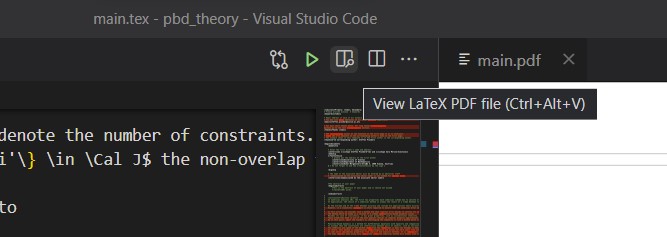
- Optionally: Check out the LaTeX Workshop page to learn more about the other cool features like auto-complete, live equation review and more.
- Search for [Grammarly] and install it.
- Press
Ctrl + Shift + Pand enter Grammarly. It should show you several options, in particularGrammarly: Login: Use this to log into your account,Grammarly: Check text: Spellcheck the current document.
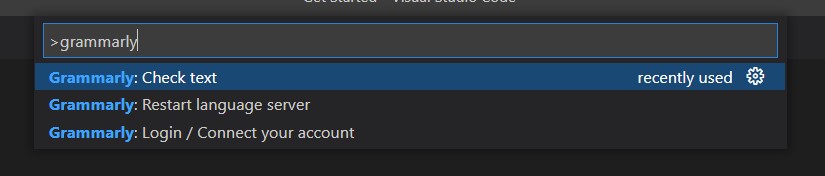
That’s it! I hope this quick tip helps you focus more on math. Feel free to write to me if the instructions are not detailed enough.
Of course, using a new editor is challenging, but to use VS Code, you just need to know exactly one thing:
Whenever you want to do something, press Ctrl + Shift + P to open the command palette; and then search for it.3