How to chat with LLama3
2024-04-24
We all know about the potential of AI/LLMs right now.
Thanks to LLama3, there is now a quite powerful option for local use.
It is mind-blowing how much knowledge fits into just 5 GB.
That’s why I wrote this short post of how to install it, so that you can try it out yourself. (Provided your computer has a sufficiently large GPU.)
Installation
Download and install
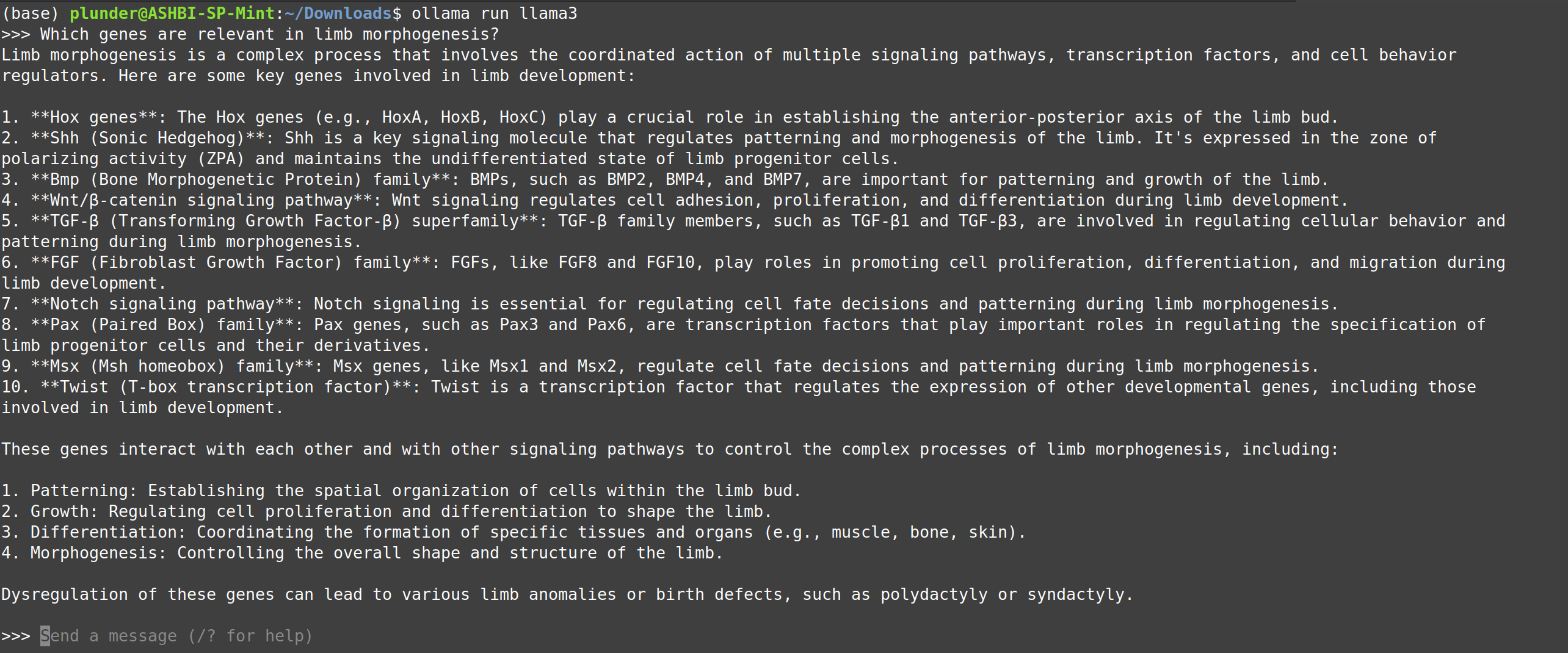
Ollamafrom ollama.com/download.Open a terminal and type:
ollama run llama3Now you can chat in the terminal.
Adding a user interface
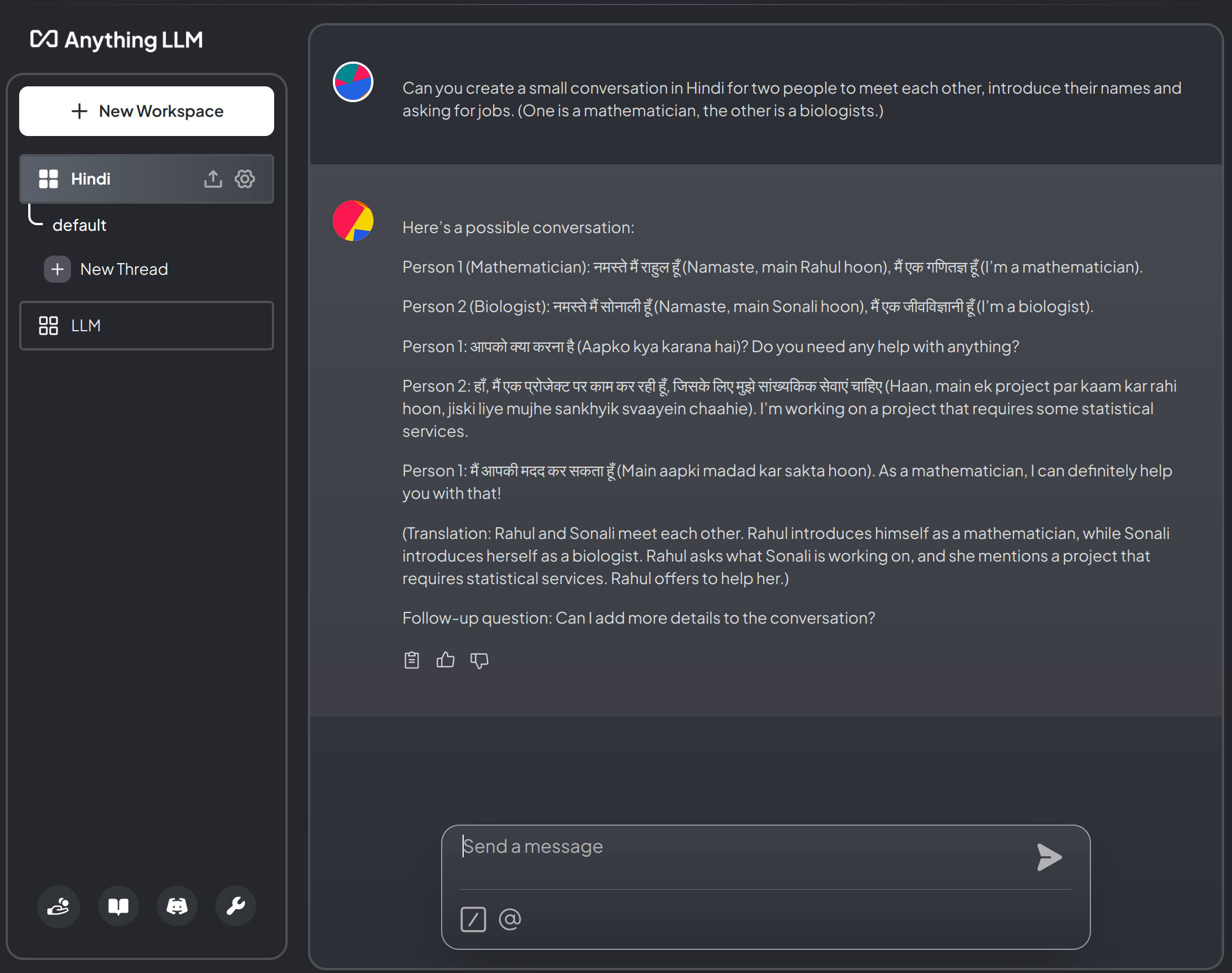
- Try AnythingLLM, which can be downloaded here: useanything.com
- Run the command
(if the portOLLAMA_HOST=127.0.0.1:11434 ollama serve11434is not free, change it to another number). - At startup, select:
- LLM Provider:
Ollama - Ollama Base URL:
http://127.0.0.1:11434(use same number as before) - Chat Model Selection:
llama3:latest - Token context windows:
4096(or smaller) - Select
AnythingLLM Built-Infor Transcription Provider and Embedder Preferences.
- LLM Provider:
- Chat.
Integration with Obsidian
- Install the community plugin
Smart Second Brain- Select
llama3as Chat Model in the plugin configuration: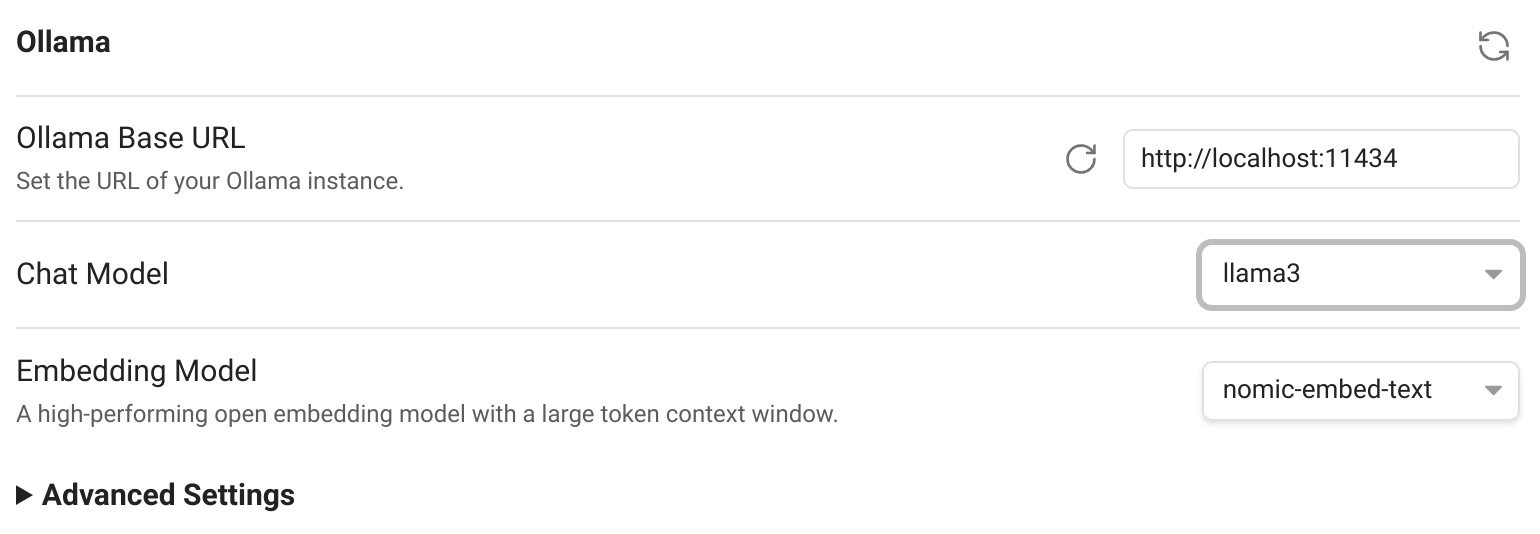
- Run
to start the ollama server. (The portOLLAMA_HOST=127.0.0.1:11434 OLLAMA_ORIGINS="app://obsidian.md*" ollama serve11434might be used, try another port in that case and change the plugin settings accordingly!) - In Obsidian, run the command
Smart Second Brain: Open Chat. - At first install, it will ask you questions. Pick:
llama3, the right port (as above) andnomic-embed-text.
- Select
- Chat with your notes.
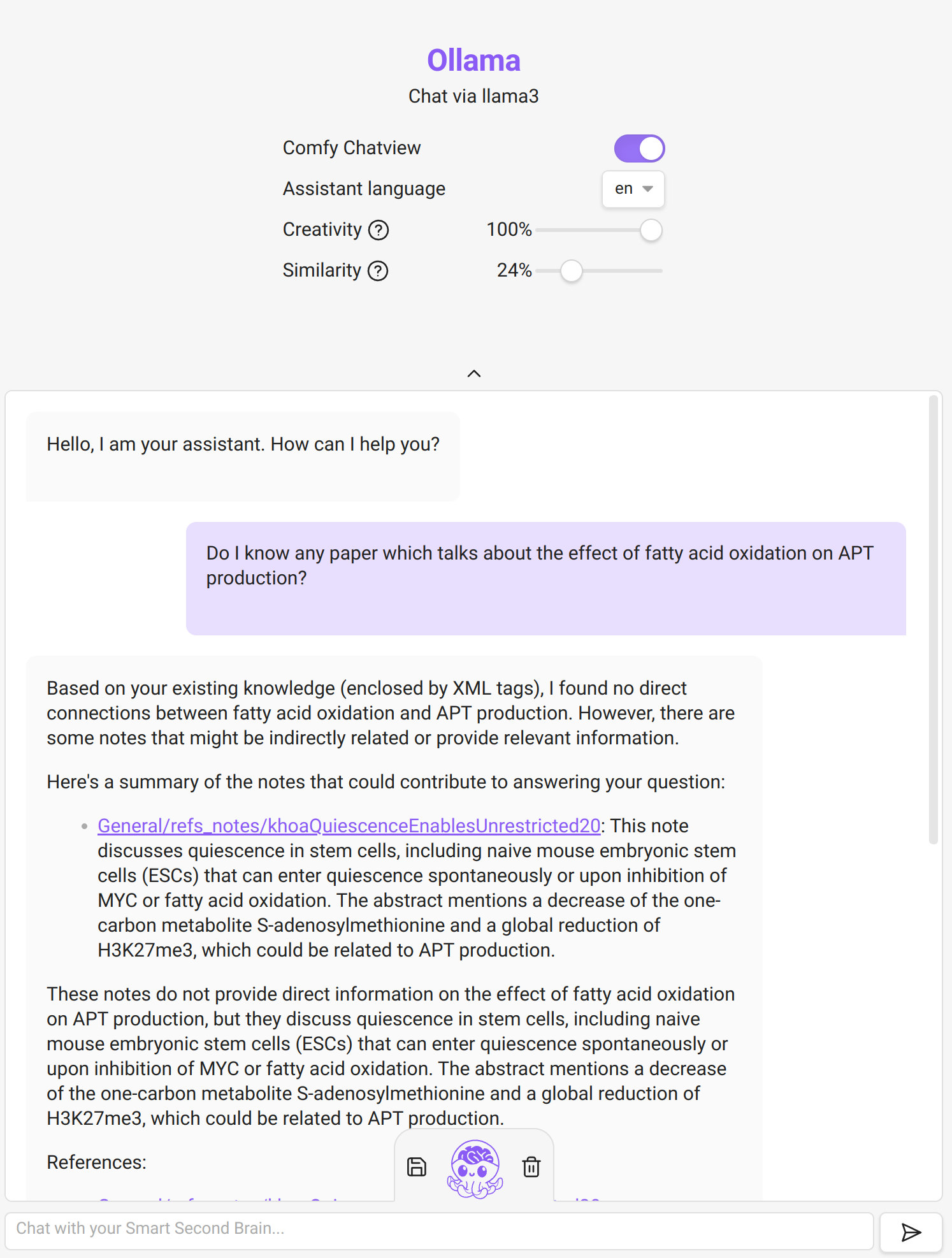 Example of using Smart Second Brain on my notes. It is a bit hit & miss to be honest. One can play with the creativity/similarity sliders to get better results. But the output is often just wrong.